

Passkeys Explained
What They Are and Why They Matter

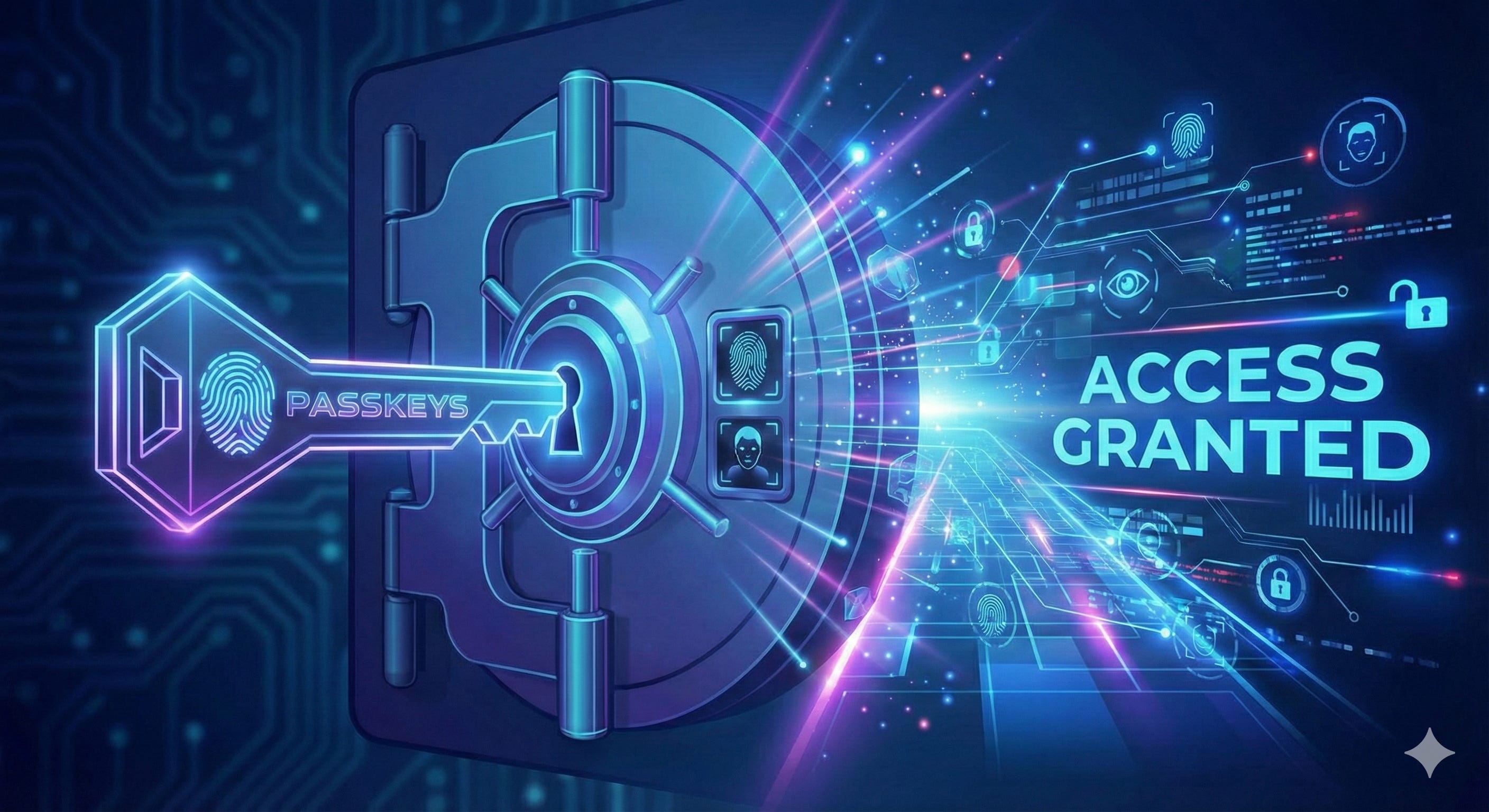
TL;DR
Passkeys replace passwords with cryptographic keys stored securely on your device.
Nothing secret is typed or transmitted, which makes passkeys resistant to phishing and data breaches.
They are protected by Face ID, Touch ID, Windows Hello, or a hardware security key such as a YubiKey.
Passkeys can sync securely across your devices through Apple, Google, or Microsoft, or remain fully offline on hardware keys.
Password managers are still useful for tracking passkeys and managing accounts that do not yet support them.
Passkeys are more secure and more convenient than passwords, and they are becoming widely supported.
If you’re like most people, you’ve got dozens of passwords floating around in your head, or worse, written on a sticky note somewhere. Your work logins. Your banking apps. Email. Cloud storage. Shopping sites. It’s exhausting, and if we’re being honest, most of us are reusing passwords we should not be.
There’s a better way, and it’s already built into the devices you’re probably using right now. They’re called passkeys, and they’re designed to replace passwords.
What Exactly Is a Passkey?
A passkey is a cryptographic credential that replaces your password. Instead of you knowing a secret, your password, your device holds a secret that proves your identity.
Here is how it actually works.
When you create a passkey for a website, your device generates a pair of cryptographic keys using public key cryptography:
A private key, which never leaves your device
A public key, which is sent to the website and stored in their database
When you return to log in, the website sends a challenge, essentially asking, “Prove you have the private key that matches this public key.” Your device uses the private key to sign that challenge, creating a unique response that only the holder of that private key could produce. The website verifies the signature using the public key, and if it matches, you’re in.
The crucial part is that your private key never travels over the internet. It stays locked on your device, protected by your biometric authentication or device PIN. The website only ever sees the signature, not the key itself.
This is fundamentally different from a password, which you type and transmit every time you log in.
Why Should You Care?
Traditional passwords have three major problems.
First, if you make them strong enough to be secure, they are hard to remember, so people reuse them across multiple sites.
Second, they can be phished. If someone tricks you into entering your password on a fake website, they have it.
Third, if a website gets hacked and its password database is stolen, your password may be compromised even if you did everything right.
Passkeys solve all three problems.
Each passkey is automatically unique to a specific account because it is a completely different cryptographic key pair. They cannot be phished because the private key is bound to the legitimate website domain. It simply will not work on a fake copy. And even if a website is breached, attackers only get the public key, which is mathematically useless without the private key stored securely on your device.
This matters for everyone, but it is especially critical if you handle sensitive data. If you’re a tax professional with client Social Security numbers, a lawyer with privileged communications, a healthcare worker with patient records, or a financial advisor with account information, a security breach is not just inconvenient. It can destroy trust, violate regulations, and potentially end a career. Passkeys provide a level of protection that passwords simply cannot match.
How This Works in Practice
Example 1: Using Your iPhone or iPad
Let’s say you are setting up a passkey for your Google account on your iPhone. You go to your Google account security settings and choose Create a passkey. Your iPhone generates the key pair and stores the private key in the Secure Enclave, a dedicated security chip designed to protect cryptographic material.
Google asks you to verify it is really you using Face ID. That Face ID check unlocks access to the Secure Enclave, allowing it to complete the passkey setup.
Next time you sign in on that iPhone, instead of typing a password, you authenticate with Face ID. Your device signs the challenge, and you are logged in, usually faster than entering a password.
That passkey automatically syncs across your Apple devices using iCloud Keychain, which is end-to-end encrypted. Set it up once, and it works on your iPhone, iPad, and Mac.
Example 2: Using Windows and Microsoft
On a Windows PC with Windows Hello enabled, the process is similar. When you create a passkey for a Microsoft account, Windows generates the key pair and stores the private key in the Trusted Platform Module, a security chip built into modern computers.
You authenticate using Windows Hello, face recognition, fingerprint, or PIN, and the passkey is ready. On future logins, Windows Hello confirms your identity, the TPM signs the challenge, and access is granted. These passkeys sync across your Windows devices through your Microsoft account.
Example 3: Using a YubiKey
For maximum security, especially for critical accounts like banking, work systems, or sensitive data, a hardware security key such as a YubiKey adds another layer of protection.
A YubiKey is a small physical device that stores passkeys in its own secure hardware. Unlike passkeys stored on phones or computers, passkeys on a YubiKey do not sync anywhere. They remain on that physical device.
When creating a passkey, you choose to use a security key instead of your device’s built-in storage. The YubiKey generates the private key internally, and it never leaves the device. To log in later, insert the YubiKey or tap it via NFC, then touch its contact to approve the authentication. Only the cryptographic signature is sent back to the website.
You can also set a PIN on the YubiKey, so even if someone steals it, they cannot use it. Because the key is physically isolated, it remains secure even if the computer you are using is compromised. Many people buy two YubiKeys, one for daily use and one stored safely as a backup.
Example 4: Using Android and Google
On Android devices, passkeys are stored in Google Password Manager and protected by your phone’s biometric authentication or screen lock. The private keys are stored in secure hardware, similar to Apple’s Secure Enclave.
When you create a passkey on Android, it syncs to other devices where you are signed into that Google account. This includes other Android phones, Chromebooks, and Chrome on Windows or Mac when you are signed into Chrome. The sync is end-to-end encrypted, so Google cannot access your private keys.
Example 5: Using macOS with Touch ID
When you set up a passkey on a macOS with Touch ID, macOS generates a cryptographic key pair and stores the private key securely in the Secure Enclave. During setup, you confirm your identity using Touch ID, which authorizes the device to create and store the passkey.
The next time you sign in, instead of entering a password, you authenticate with Touch ID. Your Mac signs the website’s challenge using the private key, and you are logged in instantly.
That passkey syncs securely across your other Apple devices through iCloud Keychain using end-to-end encryption, so it works on your iPhone, iPad, and other Macs without needing to be set up again.
What If You Lose Your Phone?
This is one of the most common concerns, and the answer depends on how your passkeys are stored.
On Apple devices, passkeys are stored in iCloud Keychain, protected by end-to-end encryption. Sign in to iCloud on a new device, verify your identity, and your passkeys are restored.
Google and Microsoft work the same way through their respective accounts. Sign in on a new device, and your passkeys sync back.
With a YubiKey, passkeys do not sync anywhere. That means you need a backup plan. The most common approach is to register two YubiKeys with important accounts and store one safely. If one is lost, the other keeps you from being locked out.
What About Password Managers?
Passkeys do not make password managers obsolete, at least not yet.
Password managers are still very useful alongside passkeys. Many modern password managers can store and manage passkeys for you, which makes it easy to keep track of which sites you have upgraded. They also remain essential for accounts that do not yet support passkeys, which is still a significant portion of the internet.
Think of passkeys as the future of authentication, and password managers as the bridge that helps you get there safely and without confusion.
Making the Switch
The transition is happening gradually. Major services like Google, Microsoft, Apple, PayPal, Amazon, GitHub, and many others already support passkeys, and more add support every month.
You do not have to switch everything at once. Start with one or two important accounts. Your primary email or a financial account is a good place to begin. Most people find passkeys so much easier than passwords that they quickly wonder why they waited.
Passkeys are not just more secure. They are genuinely more convenient. No password resets. No guessing which variation you used. Just Face ID, a fingerprint, or a quick tap of a security key.
Whether you are protecting family photos or sensitive client data, passkeys represent the future of authentication. And for many of us, that future is already here.
Are you already using passkeys? Have questions?